WordPress HTTP Error on Image Upload: Find the Real Cause
Find the real cause of a WordPress HTTP error on image upload in one check: firewall, PHP memory, post_max_size, Imagick, permissions, or filename.

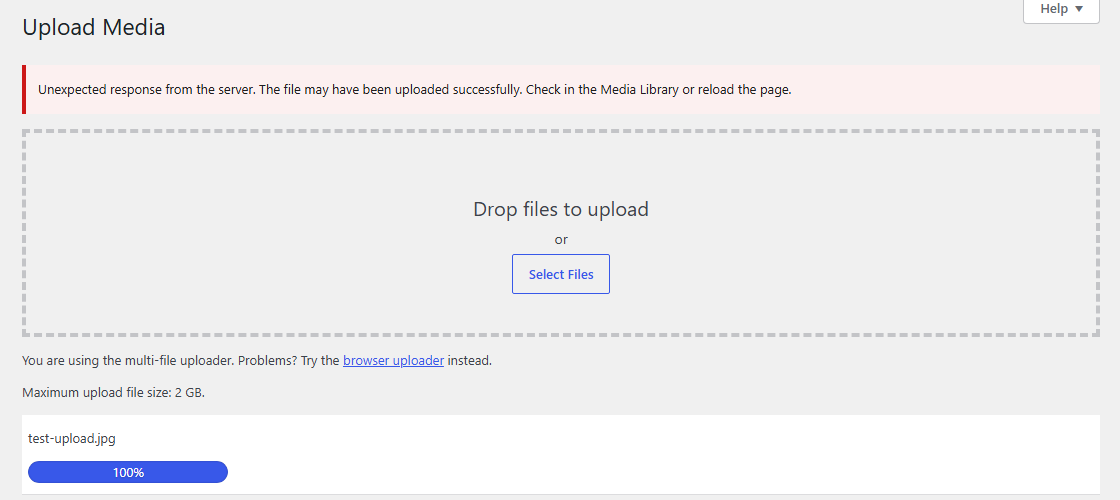
“HTTP error” is not a cause. It is the media uploader admitting it sent your file to the server and got back a response it could not parse as success — and at least six unrelated failures produce those identical three words. Guessing between them is why people spend an afternoon raising upload_max_filesize on a site whose real problem is a firewall rule.
TL;DR: Open the Network tab and reload the upload before touching any setting. The status code sorts the six causes into two groups in seconds: a 403/406 means a firewall or security rule, a 500/empty/timeout means PHP ran out of memory or time, a 413 means a size limit, and a 200 with dirty output means a plugin printed something it shouldn’t. Everything below is one check per branch, in the order worth trying them. WordPress hides the same kind of vague message behind a critical error, a blank white screen, and a failed database connection too — different trigger, identical instinct to read the log instead of guessing.
The fastest route out is a single observation that splits the six causes into two groups, then one check per branch.
First: read the actual response
Open your browser’s developer tools, go to the Network tab, and upload the file again. Watch for the request to async-upload.php. Whatever comes back is your diagnosis.
| What you see | What it means | Go to |
|---|---|---|
| 403 or 406, HTML body | Firewall or mod_security rejected the request | Branch A |
| 500, or empty response, or a truncated body | PHP crashed or ran out of memory mid-process | Branch B |
| 413 | Request body exceeded a server limit | Branch C |
| 200, but body isn’t clean JSON | A plugin or theme printed output before the response | Branch D |
| Request never completes / times out | Execution time limit, usually with large files | Branch B |
That one look eliminates most of the internet’s advice for you. If you can’t get to the browser tools, turn on logging in wp-config.php first:
define( 'WP_DEBUG', true );
define( 'WP_DEBUG_LOG', true );
define( 'WP_DEBUG_DISPLAY', false );
Reproduce the upload, then read wp-content/debug.log. A fatal error line names the branch outright. If the line is dense, paste it into the error log decoder — it maps the common fatal signatures to what actually broke.
Branch A — a firewall or mod_security rule
A 403 with an HTML page in the body means the request never reached WordPress. Something in front of it — mod_security, Cloudflare, Wordfence, Sucuri, or your host’s own rule set — decided the POST looked malicious.
The check: temporarily deactivate any security plugin and upload again. If that changes nothing, the rule lives at the server level, and you need your host to look at the mod_security audit log for the timestamp of the failed upload. They can whitelist the specific rule ID.
What this looks like in practice, by product: Cloudflare’s own block page is branded and shows a Ray ID you can hand to support when asking them to check the firewall event log for that request. Wordfence keeps a Live Traffic / Firewall log inside wp-admin that records which rule fired and when, even while the plugin is active — check it before deactivating anything. Either way, the goal is the same: find the rule ID or event, not just confirm “something” blocked it.
Be honest with yourself about the advice you’ll find here. Snippets telling you to drop this into .htaccess:
SecFilterEngine Off
SecFilterScanPOST Off
target mod_security 1.x, which is close to extinct. On a modern server those directives either do nothing or throw a 500 that makes the site worse. Modern mod_security uses SecRuleEngine, and most managed hosts block per-directory overrides of it anyway. Ask the host; don’t paste.
Branch B — PHP memory or execution limits
This is the most common branch and the one with the clearest tell: it’s intermittent. The same file uploads on the third try, or a 2MB photo fails while a 6MB PDF sails through. Hard configuration limits fail identically every time. Memory failures don’t, because how much is available depends on what else the server is doing.
Why images specifically: WordPress doesn’t just store the file, it decompresses it into raw pixels to generate every intermediate size — medium_large, anything registered with add_image_size, woocommerce_thumbnail if you run a store, plus a -scaled copy if the image is over the big_image_size_threshold. We measured this directly rather than quoting a round number: we built four JPEGs at real camera and phone resolutions, decoded each with an image library, and read the process’s actual peak memory from the operating system before and after decoding and resizing.
| Resolution | Megapixels | Memory after decode | Peak after decode + one resize |
|---|---|---|---|
| 1600×1200 (small web photo) | 1.9MP | +8.8MB | 53.5MB |
| 4032×3024 (12MP phone photo) | 12.2MP | +48.1MB | 139.1MB |
| 6000×4000 (24MP DSLR/mirrorless) | 24.0MP | +93.3MB | 247.9MB |
| 8064×6048 (“48MP” phone sensor) | 48.8MP | +187.8MB | 435.0MB |
Memory scales with pixel count, not file size on disk — a heavily-compressed 12MP JPEG and a barely-compressed one decode to the same bitmap. The 12.2MP row’s +48.1MB independently confirms the “roughly 48MB” figure this guide already used. Caveat, stated plainly: no PHP/GD was available to test directly in this pass, so the measurement uses a different image-decode library doing the same decompress-to-bitmap operation GD and ImageMagick both perform; treat the exact megabytes as the right order of magnitude for your host, not a literal GD number. Full method and raw output: seo-research/first-hand-test/wordpress-http-error-image-upload-2026-11-06.txt in the project repo. A 128MB limit disappears quickly against any of these, especially once the resize buffer is counted.
Raise it in wp-config.php, above the “stop editing” line:
define( 'WP_MEMORY_LIMIT', '256M' );
define( 'WP_MAX_MEMORY_LIMIT', '512M' );
The real cost: WP_MEMORY_LIMIT cannot exceed what PHP itself allows — PHP’s own memory_limit directive is the hard ceiling, and a WordPress constant cannot raise a wall PHP itself enforces. If your host caps memory_limit at 128M, this constant is decorative. Check the true value in Tools → Site Health → Info → Server, not in what you wrote — WordPress.org’s own Site Health documentation covers what each row there actually reports. If PHP’s own limit is the ceiling, only the host can move it.
Branch C — file size and post limits
Check the actual numbers under Tools → Site Health → Info → Media Handling. Two settings matter and people only ever change one:
upload_max_filesize— the cap on a single file.post_max_size— the cap on the entire request body.
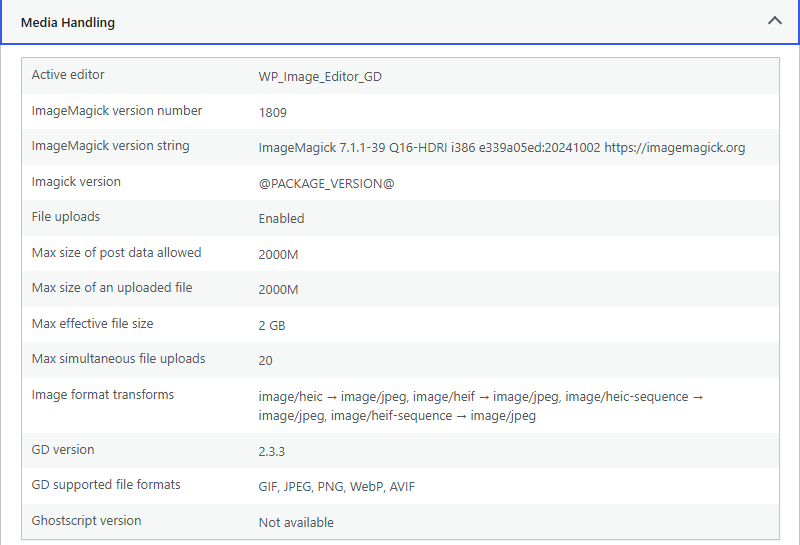
If the whole POST exceeds post_max_size, PHP discards the request before WordPress executes any code — that’s documented in the PHP manual itself, not a WordPress behavior. Nothing exists to return, so the uploader gets an unparseable response and says “HTTP error”. post_max_size should always be comfortably larger than upload_max_filesize.
A caveat worth knowing: when a file exceeds only upload_max_filesize, the uploader usually catches it in the browser and says the file exceeds the maximum upload size — a clearer message. So a bare “HTTP error” points more often at post_max_size or at Branch B than at the setting everyone raises first.
Where to change them depends on your stack. On Apache with mod_php, .htaccess works:
php_value upload_max_filesize 64M
php_value post_max_size 128M
On PHP-FPM, LiteSpeed, or NGINX — which is most modern hosting — those lines do nothing, and may throw a 500. Use the host’s PHP settings panel or a .user.ini file instead:
upload_max_filesize = 64M
post_max_size = 128M
Drop that file next to wp-config.php, give PHP-FPM a few minutes to pick it up (.user.ini is cached, unlike .htaccess), then re-check Site Health. NGINX also enforces its own client_max_body_size, which lives in the server block, not in PHP at all — only the host can raise it, and no amount of .htaccess or .user.ini editing substitutes for it.
Branch D — the image editor library (Imagick vs GD)
WordPress prefers ImageMagick when the PHP extension is present and falls back to GD. On shared hosts, ImageMagick is frequently the problem: its policy configuration file restricts memory, disk, and area per operation, and when a resize trips one of those limits the process dies without a useful message. You’ll usually see this on large images while small ones work — which looks like Branch B and isn’t.
Force GD to test the theory:
add_filter( 'wp_image_editors', function ( $editors ) {
    return array( 'WP_Image_Editor_GD' );
} );
Put that in functions.php or a small mu-plugin, retry the upload, then remove it if nothing changes.
The honest trade-off: GD is not strictly better. It holds the full uncompressed bitmap in PHP’s memory, so for very large files it can hit memory_limit where ImageMagick — which works partly outside PHP’s allocation — would have succeeded. Switching can trade one failure for another. Treat it as a diagnostic first and a fix second.
Branch E — uploads directory permissions
Rare on managed hosting, common right after a migration or a manual server move. If wp-content/uploads isn’t writable by the web server user, or a newly created year/month subfolder inherited the wrong owner, the write fails.
ls -ld wp-content/uploads
ls -ld wp-content/uploads/2026/07
Directories should typically be 755 and owned by the user PHP runs as. Do not set 777 because a forum told you to — it fixes the symptom by making the folder writable by every account on the server, which on shared hosting is a genuine exposure.
Branch F — the filename
Cheapest check on the list, so do it early even though it’s the least likely. Rename the file to plain lowercase letters, numbers, and hyphens — no accents, apostrophes, ampersands, #, or non-Latin characters — and upload again. Special characters occasionally trip a security rule or break on a filesystem with mismatched encoding. Ten seconds to rule out.
What not to do
Don’t start by deactivating every plugin. It’s disruptive and it only tests Branch A and Branch D. The network response tells you more in five seconds.
Don’t add a random .htaccess handler line. The snippets circulating that add a SetHandler or AddHandler directive assume a specific host’s PHP setup. On the wrong stack they take the whole site down with a 500.
Don’t accept “it worked on retry” as fixed. Intermittent success is the signature of Branch B, and it will come back the moment the server is busy or someone uploads something bigger.
Still stuck?
If the response is a clean 200 with valid JSON and the upload still fails, the break is after the file lands — usually a plugin hooked into the attachment-processing chain throwing a fatal, or an optimizer plugin sending its own request to an external service that times out. Enable WP_DEBUG_LOG, reproduce, and run the resulting fatal through the error log decoder to see which file and which hook is actually responsible.
The same fatal can surface differently depending on where in the request it happens — on a different page load it’s what produces a critical error screen instead of a failed upload, and if it happens early enough in the boot sequence you get a blank white screen with no message at all. All three are the same underlying habit: PHP crashed, WordPress couldn’t say why on the page, and the real answer is one debug.log line away.
William Lopez is the founder of Odie Themes. He builds the free WordPress tools and themes on this site and has been on WordPress.org since December 2019.
FAQ
Questions
What does HTTP error mean when uploading images to WordPress?
It means the browser uploader sent your file to the server and got back something it could not parse as a valid success response. The message describes the symptom, not the cause. A crashed PHP process, a firewall block, a 403, and an empty response all produce the identical three words.
Why does the same image upload fine sometimes and fail other times?
Intermittent failures almost always point to memory or CPU exhaustion rather than a configuration limit. Resizing a large photo needs a burst of memory, and on shared hosting the amount available changes with server load. A hard limit like post_max_size fails identically every single time.
Does switching WordPress from Imagick to GD fix HTTP errors?
Sometimes, and only for one specific branch. ImageMagick on shared hosts is often restricted by a policy file or low resource limits, and it fails where GD succeeds. GD uses more memory for very large files though, so switching can make memory-driven failures worse rather than better.
How do I know if my host firewall is blocking the upload?
Open your browser network tools, upload the file, and look at the status code returned for async-upload.php. A 403 or 406 with an HTML body means a web application firewall or mod_security rule rejected the request. A 500 or an empty response points at PHP crashing instead.
Will increasing upload_max_filesize fix the HTTP error?
Only if the file genuinely exceeds your limits, and post_max_size usually matters more. If the whole request body is larger than post_max_size, PHP discards it before WordPress runs and the uploader gets nothing back. Raising one without the other leaves the failure exactly where it was.
Can a filename cause a WordPress HTTP error?
Yes, though it is the rarest branch. Accented characters, apostrophes, ampersands, and non-Latin scripts can trip a security rule or break a path on a mismatched filesystem encoding. Renaming to plain lowercase letters, numbers, and hyphens costs nothing and rules the branch out in about ten seconds.