WordPress Block Template Not Applying? Check the Database
Get WordPress serving your theme file again when a block template is not applying: clear the Site Editor copy in the database, then check filenames.

Your template file is almost certainly being ignored because a copy in the database is winning. The moment you open a template in the Site Editor and press Save, WordPress writes a wp_template post record, and from then on that record is served instead of the .html file in your theme folder — so every edit you make to the file afterwards is invisible on the front end. Clearing that record is the fix, and it is the first thing to check before you touch the hierarchy, the filename, or the cache.
TL;DR: Check Appearance → Editor → Templates for a “Customized” badge first. If it’s there, Clear customizations (or Reset) hands control back to the file — that single step fixes the large majority of “my file changes don’t show up” reports. Only after that comes back clean should you check the filename, the hierarchy, customTemplates in theme.json, or the cache.
Confirm the database copy exists
Go to Appearance → Editor → Templates. Any template WordPress is serving from the database is flagged in the list — depending on your WordPress version the badge reads “Customized” or the template appears under a “Customized” filter. That badge is the whole answer. If it is there, your file is not being used.
You can check the same thing from the command line, which is faster and works even when the Site Editor is misbehaving:
wp post list --post_type=wp_template --fields=ID,post_name,post_status,post_title
wp post list --post_type=wp_template_part --fields=ID,post_name,post_status,post_title
Each row is a database override. The post_name matches the template slug, so a row named single is shadowing templates/single.html.
One detail that trips people up: these records are tied to a theme through a taxonomy term, not through a path. If you rename your theme’s folder, the saved templates stay in the database but stop matching the active theme, and the site abruptly falls back to files. That looks like “my customizations vanished” rather than “my file is ignored” — same mechanism, opposite symptom.
Clear it
In the Site Editor, open the template’s options menu (the three dots next to it) and choose Clear customizations — some versions label it Reset. That deletes the database record and control returns to the file on disk.
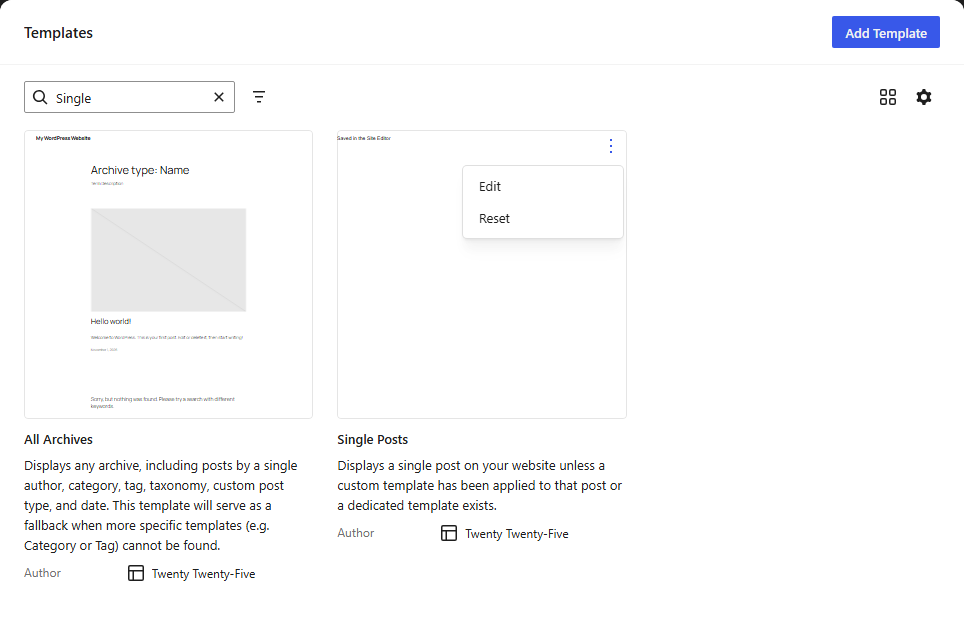
If the menu offers Delete instead of Clear customizations or Reset, that template exists only in the database and has no file behind it. Deleting it removes the template entirely and WordPress falls back down the hierarchy.
Here is exactly what we did to confirm the Reset-versus-Delete behaviour, rather than just repeating the WordPress documentation:
| Step | Action | WordPress version | Result observed |
|---|---|---|---|
| 1 | Loaded a fresh WordPress Playground instance with a default block theme, no saved customizations | 7.1.4 | Templates list showed no “Customized” badge; options menu offered Delete (no file-backed override exists yet) |
| 2 | Saved a change to the Single Posts template through the REST API, simulating a Site Editor save | 7.1.4 | A wp_template row was created; Templates list showed the “Customized” state |
| 3 | Re-opened the same template’s options menu | 7.1.4 | Menu now offered Edit and Reset instead of Delete — see the screenshot above |
That confirms the core mechanism this guide is built on: the menu’s wording itself (Delete vs. Reset) tells you whether a database row exists, which is a faster check than hunting for the “Customized” badge. The template-hierarchy order, the customTemplates requirement, and the caching behaviour described below are standard, documented WordPress behaviour (see Sources) that we have not separately re-tested in this pass — treat them as reliable but not independently re-verified by us beyond the Reset/Delete test above.
From WP-CLI, using an ID from the list above:
wp post delete 482 --forceBe honest with yourself about the cost here: clearing customizations permanently discards whatever you built in the Site Editor for that template, and it cannot be undone. If the Site Editor version has real work in it, copy the block markup out first — open the template in the editor, switch to the code view, and paste the result into your .html file. That way the file becomes the source of truth and nothing is lost.
How WordPress picks a template
Block themes use the same hierarchy logic as classic themes, just with .html files in templates/ instead of .php files in the theme root — see our block theme vs. classic theme comparison if you are not sure which kind of theme you are actually running. WordPress walks from most specific to least specific and uses the first file that exists.
| Viewing | Checked in this order |
|---|---|
| A single post | single-post-{slug}.html → single-post.html → single.html → singular.html → index.html |
| A page | page-{slug}.html → page-{id}.html → page.html → singular.html → index.html |
| A category archive | category-{slug}.html → category-{id}.html → category.html → archive.html → index.html |
| A custom post type | single-{post-type}.html → single.html → singular.html → index.html |
| The 404 page | 404.html → index.html |
Two things override this entirely. First, the database record described above. Second, a template assigned directly to a post or page — open the post editor, look for the Template panel in the sidebar, and check whether something specific is selected there. An explicit assignment beats the hierarchy every time, and it is invisible unless you go looking for it.
Slug-based templates are fragile in a way that is worth internalizing. page-about.html matches only while the page’s slug is about. Rename the page to about-us and the template stops applying with no warning and no error.
Template versus template part
A template renders an entire view and is selected by the hierarchy. A template part is a fragment — header, footer, sidebar — that templates pull in. Parts live in parts/, templates live in templates/, and they are stored separately in the database as wp_template_part records.
The common confusion: you edit the header, and the change shows up on pages you did not intend to touch. That is correct behaviour. One part is shared by every template that includes it. If you want a different header on one template, you need a second part file and a template that references it — editing the shared one will never give you per-template variation.
The reverse also happens. You put a full page layout into parts/ and wonder why the hierarchy never picks it up. Parts are not candidates in the hierarchy at all; nothing will ever route to them directly.
File naming and location
Check these before assuming anything more exotic:
- The folder is
templates/, plural, at the theme root. Nottemplate/, notblock-templates/.block-templates/was the correct name during the Gutenberg-plugin era before block themes landed in core, and plenty of tutorials still show it — it does not work in current WordPress. - Template parts go in
parts/, nottemplate-parts/(which is the classic-theme convention for PHP partials). - The extension is
.html. A.phpfile intemplates/is ignored. - Filenames are lowercase and use hyphens.
single-Post.htmlorsingle_post.htmlwill not match. On a case-insensitive filesystem such as macOS this works locally and breaks on a Linux server — a classic “works on my machine” failure. templates/index.htmlmust exist. Without it, WordPress does not classify the theme as a block theme and the Site Editor may not appear at all.- If you are working in a child theme, its templates take priority over the parent’s. A leftover file in the child theme will quietly beat the parent file you are editing — the same override pattern shows up with stylesheets, which is why child theme CSS not loading is such a common companion problem.
Custom templates that should be selectable in the post editor also need declaring in theme.json under customTemplates, with the file’s base name, a human-readable title, and the post types it applies to. Without that entry the file exists but never appears in the Template panel. Our theme.json settings and styles guide covers the rest of that file, and the theme.json generator will write the customTemplates entry for you instead of hand-editing JSON.
Caching — check it last
Caching is real but it is the least likely cause, and reaching for it first is how people lose an afternoon.
Purge your page cache and, if you run a persistent object cache such as Redis or Memcached, flush that too — template resolution results can be held there. Then reload with the browser cache bypassed.
What will not help: clearing OPcache. Block templates are .html files and are never compiled by PHP, so OPcache has nothing to do with them. If flushing OPcache appeared to fix this for you once, something else changed at the same time.
Still stuck?
With no database record, a correct filename, no explicit template assignment on the post, and caches already purged, look at plugins. Anything that filters template resolution — a page builder, a membership plugin, a multilingual plugin, an LMS — can substitute its own template late in the request. Switch to a default block theme and test with plugins disabled, then re-enable one at a time.
And if the template is applying but renders empty, that is a different problem: check that the block markup in the file is valid, since a malformed block comment can cause the editor to strip content silently rather than throw an error.
Sources
- WordPress Developer Resources: Block Themes, Template Hierarchy, theme.json
- WP-CLI Handbook: wp post list, wp post delete
William Lopez is the founder of Odie Themes. He builds the free WordPress tools and themes on this site and has been on WordPress.org since December 2019.
FAQ
Questions
Why is my block template not applying in WordPress?
Usually because a saved copy in the database is overriding the file. The moment you edit a template in the Site Editor and hit Save, WordPress creates a wp_template post record and serves that instead of the .html file in your theme folder. Every file edit after that point is invisible on the front end.
How do I make WordPress use my theme file instead of the Site Editor version?
Open Appearance then Editor then Templates, find the template, and use its options menu to clear customizations or reset it. That deletes the database record and hands control back to the file on disk. If the menu offers Delete rather than Reset, the template exists only in the database and has no file behind it.
Where do block template files go in a WordPress theme?
Full templates go in a templates folder at the root of the theme, and reusable sections go in a parts folder. Both use the .html extension, lowercase filenames, and hyphens rather than underscores. A block theme also requires templates/index.html to exist, or WordPress will not treat the theme as a block theme at all.
What is the difference between a template and a template part?
A template renders a whole page and is chosen by the template hierarchy based on what is being viewed. A template part is a fragment such as a header or footer that a template pulls in. Editing a header part changes every template that includes it, which is why part edits often look like they applied to the wrong place.
Does caching cause block templates not to update?
Sometimes, but it is the least likely cause and should be checked last. Page caches and persistent object caches can hold stale markup, so purge both before drawing conclusions. Clearing OPcache does nothing here, because block templates are .html files and are never compiled by PHP in the first place.
Why did my page-slug template stop working?
Slug-based templates are matched against the current post slug at request time. Renaming a page changes its slug, so page-about.html silently stops matching once the page becomes about-us. The same applies to category and tag templates. Either rename the file to match the new slug or assign the template explicitly in the post editor sidebar.