WordPress theme.json Explained: Settings, Styles, Cascade
Understand why settings and styles do different jobs in theme.json, and fix block theme edits that render nothing by working through the WordPress cascade.

theme.json is a single configuration file at the root of a block theme that does two separate jobs: settings decides what the block editor offers users, and styles decides what the site actually looks like by default. WordPress parses it, merges it with its own defaults and with anything saved in the Site Editor, and outputs the result as CSS custom properties plus an inline stylesheet on every page.
Confusing those two jobs is why most theme.json edits appear to do nothing. Declaring a color under settings does not apply that color anywhere. It only creates a variable and a swatch in the editor sidebar.
TL;DR: settings only generates CSS variables and editor controls; styles is the only block that applies a value. If a theme.json edit “does nothing,” the usual order of suspects is (1) you edited settings and forgot styles, (2) a saved Global Styles record in the database is overriding your file, or (3) WordPress is serving a cached copy of the parsed file. The diagnostic order below walks through all three. If you’d rather not hand-write the JSON, the theme.json generator builds a valid file from a form and shows you the output.
The top-level keys
A minimal file looks like this:
{
  "$schema": "https://schemas.wp.org/trunk/theme.json",
  "version": 3,
  "settings": {},
  "styles": {},
  "templateParts": [],
  "customTemplates": []
}| Key | What it does |
|---|---|
$schema | Editor autocomplete and validation only. WordPress ignores it. |
version | Tells WordPress which schema shape to parse. Not your theme version. |
settings | Generates CSS variables and controls what the editor exposes. |
styles | Applies actual default styling. |
templateParts | Declares parts in parts/ and which area they belong to. |
customTemplates | Registers page templates in templates/ for the post editor. |
version trips people up because it looks like a theme version number. It is not. It selects a parsing mode, and older WordPress releases silently ignore keys from a schema shape they do not know. If you support older installs, target the version those installs understand rather than assuming newer keys degrade gracefully. Version 3 is current at the time of writing; version 2 is still widely deployed and still parsed.
$schema points at a schema URL hosted by WordPress. Pinning it to trunk gives you the newest hints in your code editor; a version-specific URL is safer if you are deliberately staying on an older schema.
settings: what the editor offers
Everything under settings produces a CSS custom property and, in most cases, a control in the editor. Nothing under settings styles anything.
{
  "settings": {
    "color": {
      "palette": [
        { "slug": "brand", "color": "#1f4ed8", "name": "Brand" },
        { "slug": "ink", "color": "#111827", "name": "Ink" }
      ],
      "custom": false
    },
    "typography": {
      "fontSizes": [
        { "slug": "small", "size": "0.875rem", "name": "Small" },
        { "slug": "large", "size": "1.5rem", "name": "Large" }
      ]
    },
    "layout": {
      "contentSize": "680px",
      "wideSize": "1200px"
    }
  }
}
That produces variables named from the preset path and slug:
--wp--preset--color--brand
--wp--preset--color--ink
--wp--preset--font-size--small
--wp--preset--font-size--large
It also produces utility classes such as .has-brand-color and .has-brand-background-color, which is how the editor applies a picked swatch to a block.
The "custom": false line is the other half of settings: turning options off. Set it and the arbitrary color picker disappears, leaving users your palette and nothing else. The same pattern works across the board — settings.typography.customFontSize, settings.spacing.customSpacingSize, settings.border, and so on. Nothing under settings is decorative; each key either adds a variable, adds a control, or removes a control.
Here is the same transformation laid out as input-to-output, since the naming pattern is the part people get wrong:
You write under settings | Variable WordPress generates | Utility class also generated |
|---|---|---|
color.palette entry, slug brand | --wp--preset--color--brand | .has-brand-color, .has-brand-background-color |
typography.fontSizes entry, slug large | --wp--preset--font-size--large | .has-large-font-size |
spacing.spacingSizes entry, slug 40 | --wp--preset--spacing--40 | none generated; referenced manually in styles |
custom.lineHeight.body | --wp--custom--line-height--body | none — custom never generates utility classes |
Only the preset categories (color, typography.fontSizes, spacing.spacingSizes, and a few others such as shadow) produce both a variable and a class. settings.custom always produces a variable only — you have to reference it yourself under styles, exactly like the brand-color example above.
settings.custom is a free-form bucket for your own variables:
{
  "settings": {
    "custom": {
      "lineHeight": { "body": 1.6 },
      "shadow": { "card": "0 1px 3px rgba(0,0,0,0.12)" }
    }
  }
}
Those become --wp--custom--line-height--body and --wp--custom--shadow--card. Note the transformation: camelCase keys are split into kebab-case, and nesting is joined with double dashes. Getting a variable name wrong is a common reason a value silently falls back.
You can scope settings per block, which is how you allow a color picker on buttons but not on paragraphs:
{
  "settings": {
    "blocks": {
      "core/paragraph": {
        "color": { "custom": false, "customGradient": false }
      }
    }
  }
}
styles: what actually renders
styles is where values get applied. It mirrors the editor’s structure: a root level, then elements, then blocks.
{
  "styles": {
    "color": {
      "background": "var(--wp--preset--color--base)",
      "text": "var(--wp--preset--color--ink)"
    },
    "typography": {
      "lineHeight": "var(--wp--custom--line-height--body)"
    },
    "elements": {
      "link": {
        "color": { "text": "var(--wp--preset--color--brand)" },
        ":hover": { "typography": { "textDecoration": "none" } }
      }
    },
    "blocks": {
      "core/quote": {
        "typography": { "fontStyle": "italic" },
        "spacing": { "padding": { "left": "var(--wp--preset--spacing--40)" } }
      }
    }
  }
}
Root-level styles land on the body. elements covers HTML primitives that are not blocks — link, button, headings, caption. blocks targets a specific block type by name.
The honest limitation: styles cannot express everything CSS can. There is no way to author your own media queries, no complex selectors, no animations, and only a small set of supported pseudo-class states. Fluid typography and layout-based sizing cover a lot of what people used breakpoints for, but not all of it. Most shipping block themes carry theme.json plus a modest stylesheet, and that is a normal outcome, not a failure.
The settings-versus-styles trap
The single most common support question is some version of “I added my brand color and nothing changed.”
Correct. Adding it to settings.color.palette created --wp--preset--color--brand and a swatch. It applied nothing. To make it the default link color you must also write it under styles:
{
  "settings": {
    "color": {
      "palette": [{ "slug": "brand", "color": "#1f4ed8", "name": "Brand" }]
    }
  },
  "styles": {
    "elements": {
      "link": { "color": { "text": "var(--wp--preset--color--brand)" } }
    }
  }
}
Read it as: settings is the box of paint you hand the user, styles is the coat you put on before they arrive.
A second version of the same mistake, scoped to spacing instead of color: you add a value under settings.spacing.spacingSizes with slug 40, and the editor’s spacing control now offers it — but no block uses it by default, because, per the reference table above, a spacing preset never generates a utility class the way a color preset does. You have to write "padding": { "left": "var(--wp--preset--spacing--40)" } under styles.blocks.core/quote (or wherever you want it) yourself, exactly as the core/quote example earlier in this guide does. The fix is identical in shape every time: the preset only names the value, styles is what assigns it somewhere.
The cascade, lowest to highest
This is the part that explains a site that “ignores” the theme file. WordPress merges several layers before emitting CSS:
- WordPress core defaults — core ships its own
theme.jsonwith a baseline palette, font sizes and spacing scale. - Parent theme
theme.json - Child theme
theme.json— merged over the parent key by key, not replacing the whole file. - Global Styles saved in the database — what the Site Editor’s Styles panel writes.
- Per-block styles on individual blocks — attributes stored in post content, rendered as inline styles or classes.
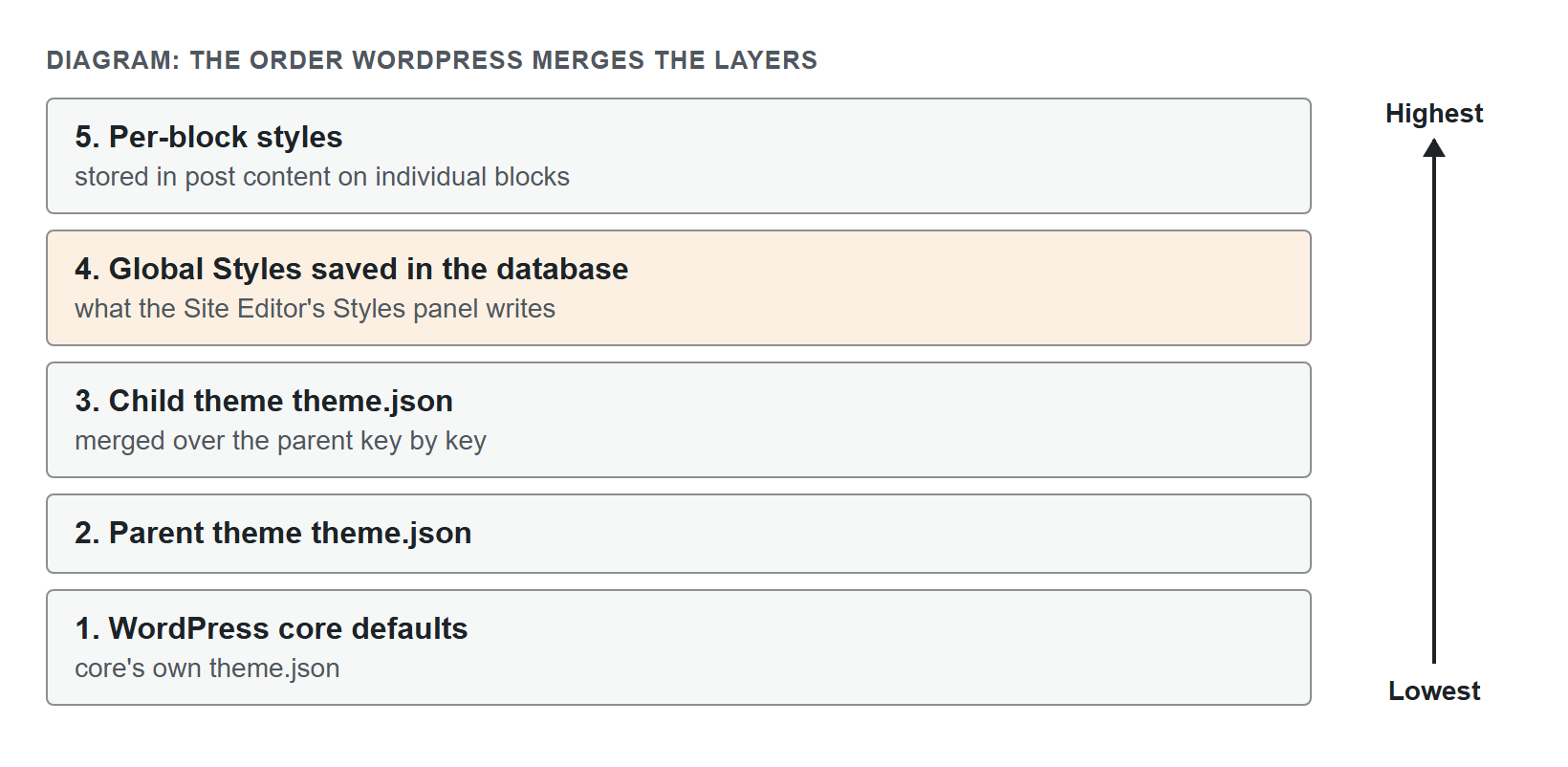
Layer 4 is the one that breaks sites. The moment anyone opens the Styles panel and saves, WordPress stores a Global Styles record and that record wins over your file for every property it contains. Editing theme.json afterwards changes nothing visible for those properties, on a site that looks identical after a deploy while the file on disk is obviously different.
The fix is to clear the saved record, not to escalate with !important. Open the Site Editor, go to Styles, open the revisions panel, and reset to the theme’s defaults. Confirm with the client or site owner first — resetting discards their customizations, which is a real cost, not a free action.
A saved Global Styles record is also the usual culprit behind a block template that silently refuses to apply — the database copy wins there for the same reason it wins here.
The second suspect is caching. WordPress caches the parsed theme.json data rather than re-reading the file on every request, which is exactly what you want in production and exactly what you do not want while developing. Enabling WP_DEBUG, or the theme development mode setting on newer releases, causes WordPress to re-read the file each time. If your edits appear only after a deploy or a cache flush, that is what you are seeing.
templateParts and customTemplates
Both are arrays that describe files already sitting in your theme.
{
  "templateParts": [
    { "name": "header", "title": "Header", "area": "header" },
    { "name": "footer", "title": "Footer", "area": "footer" }
  ],
  "customTemplates": [
    { "name": "page-wide", "title": "Wide Page", "postTypes": ["page"] }
  ]
}
name matches the filename without its extension — parts/header.html, templates/page-wide.html. The area value matters: it decides whether the part is wrapped in a header or footer landmark element and how the editor categorizes it. WordPress recognizes three values — header, footer, and uncategorized — and anything else, including a typo, is silently treated as uncategorized with no warning, which is why a header part that renders as a plain <div> instead of a <header> landmark is usually a misspelled area value, not a missing template part.
customTemplates is what makes a template appear in the template dropdown in the post editor. Without the entry, the file exists but no one can select it.
If you are not sure whether a site is even running on the block-theme model that theme.json belongs to, see block theme vs. classic theme first — a classic theme’s style.css and functions.php setup (the same enqueue mechanics covered in why a child theme’s styles stop loading) does not read theme.json at all.
A quick diagnostic order
When a block theme is not styling the way the file says it should, work through this before touching anything:
- View source and search for the generated global styles block. If your variable is not there, the problem is in
settingsor a slug typo. - If the variable exists but is unused, the problem is a missing
stylesentry. - If both exist but something overrides them, check for a saved Global Styles record.
- Only then look at your own stylesheet, plugins, or a page builder injecting CSS later in the cascade.
Sources
- WordPress Theme Handbook: Global settings and styles (theme.json), Settings, Styles
- Block Editor Handbook: theme.json reference
- Gutenberg source code: theme.json schema
William Lopez is the founder of Odie Themes. He builds the free WordPress tools and themes on this site and has been on WordPress.org since December 2019.
FAQ
Questions
What is theme.json in WordPress?
It is a single JSON configuration file at the root of a block theme that controls two things: which design options the block editor exposes to users, and what the default styles are. WordPress reads it, generates CSS custom properties and a stylesheet from it, and merges it with core defaults and any Global Styles the user saved.
What is the difference between settings and styles in theme.json?
Settings defines what is available and generates CSS variables plus editor controls, but applies nothing on its own. Styles applies actual values using those variables. Adding a color to the palette does not change any element until you also reference it under styles or a user picks it in the editor.
Why are my theme.json changes not showing on the front end?
Almost always because Global Styles saved in the database override theme.json. Once anyone touches the Styles panel in the Site Editor, that saved record wins for every property it contains. Open Styles, use the revisions panel to reset to theme defaults, then reload. Caching of parsed theme.json data is the second suspect.
Do I still need a style.css file with theme.json?
Yes. WordPress requires style.css for the theme header comment that supplies the theme name, version and other metadata, so the theme is recognized at all. You can leave it otherwise empty and put your design decisions in theme.json, or keep a small amount of CSS for things theme.json cannot express.
What version number should theme.json use?
Use the highest version your minimum supported WordPress release understands. The version key tells WordPress which schema shape to parse, and older WordPress releases ignore keys they do not recognize. If you target older installs, stay on the version they support rather than assuming newer keys degrade gracefully.
Does theme.json replace CSS entirely?
No. It covers presets, block defaults, element styles, layout widths and spacing well, but it has no concept of media queries you author yourself, complex selectors, animations or pseudo-class states beyond the handful it supports. Most production block themes ship theme.json plus a modest stylesheet for the remainder.