WooCommerce Product Image Size: Defaults and How to Change
WooCommerce product image sizes: the three defaults, where to change them, why catalog thumbnails crop badly, and how to regenerate old product images safely.

WooCommerce makes three image sizes from every product photo: woocommerce_thumbnail (300px wide, square-cropped) for shop grids, woocommerce_single (600px wide, uncropped) for the main product image, and woocommerce_gallery_thumbnail (100x100, square) for the small thumbnails under it. You change the first two at Appearance > Customize > WooCommerce > Product Images. The gallery thumbnail has no setting, and old product images only change after you regenerate them.
The three sizes and their defaults
The names and defaults below come from WooCommerce’s image sizes documentation for theme developers.
| Size name | Where it shows up | Default size | Cropping | Customizer control |
|---|---|---|---|---|
woocommerce_thumbnail | Shop page and other product grids | 300px wide | Square (1:1) by default | Width and cropping |
woocommerce_single | Main image on the single product page | 600px wide | Uncropped, keeps the uploaded aspect ratio | Width only |
woocommerce_gallery_thumbnail | Small thumbnails under the main product image | 100x100 | Always square | None |
These come on top of the standard WordPress sizes. One product photo will usually produce thumbnail, medium, medium_large, large, the three WooCommerce sizes, and any extras your theme registers with add_image_size. That is a lot of files per upload, which is part of why large product imports are slow and why a shop’s uploads folder grows faster than a blog’s — see why your uploads folder gets so big if storage is the problem you’re chasing.
The gallery thumbnail surprises people because it has no admin control at all. At 100x100 the file is tiny, so it is the size most likely to look soft on a high-density screen.
What this actually produces: a measured test
The table above restates WooCommerce’s documented defaults — useful, but it doesn’t tell you what those settings do to a real file. So we ran one. We built a 2000x1200 test JPEG (quality 90, 521.8 KB) — the same dimensions used as the example later in this guide — and ran it through each size’s real crop or scale rule at WordPress’s default output quality of 82 (the same quality WordPress’s own image editor applies; see disabling WordPress’s JPEG compression if you want to raise that).
| Size | Output pixels | Output file size | % of source bytes |
|---|---|---|---|
woocommerce_gallery_thumbnail | 100x100 | 0.8 KB | 0.2% |
woocommerce_thumbnail | 300x300 | 3.7 KB | 0.7% |
medium (WP core, for comparison) | 300x180 | 2.2 KB | 0.4% |
woocommerce_single | 600x360 | 9.2 KB | 1.8% |
large (WP core, for comparison) | 1024x614 | 39.4 KB | 7.5% |
Two things worth noticing. First, the gap between the catalogue thumbnail and the main image is not just pixels — it’s two orders of magnitude in file weight, which is why a shop page full of woocommerce_thumbnail images loads fast even with hundreds of products. Second, woocommerce_single stays small (under 10 KB here) because it’s a plain product shot with no fine detail; a busy lifestyle photo at the same dimensions will weigh more.
This was a controlled test with a file we generated ourselves, not a real product photo, and it ran on sharp/libvips rather than the GD or Imagick library a live WordPress install uses — so treat the exact byte counts as indicative, not a guarantee of what your own catalogue will produce. The dimension math is identical to WordPress’s, though: hard crop fills the box exactly, everything else scales to fit. Run your own product photo through the WordPress image sizes tool to see the real numbers for your file.
Where the settings live
Appearance > Customize > WooCommerce > Product Images gives you three controls:
- Main image width: the width of
woocommerce_single. Height is automatic, so the original aspect ratio is kept. - Thumbnail width: the width of
woocommerce_thumbnail. - Thumbnail cropping:
1:1(square, the default),Custom(you type a ratio like 4:3), orUncropped.
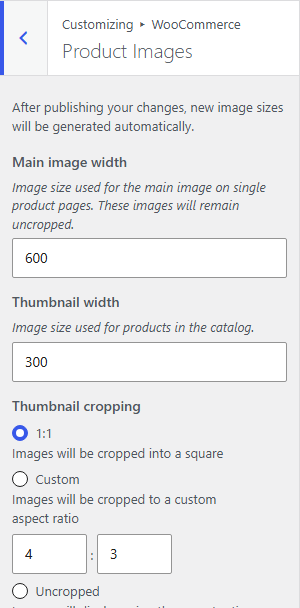
There is no height field for the catalog thumbnail, because the height comes from the cropping ratio. There is nothing for the gallery thumbnail either.
WooCommerce’s guide to fixing blurry product images gives one rule for the main image width: set it to match or exceed the largest size your theme displays it at. Uploaded images are resized to the values you enter, so a width that is too small is a common cause of soft product photos.
Before you change anything, check which files a given photo will produce. Drop a real product photo into the WordPress image sizes tool and you get the full list, including whether your source is big enough to fill each size without upscaling.
Why your catalog images look wrong
The catalog thumbnail hard-crops to a square. WooCommerce describes hard cropping as forcing the image to the exact size in the settings, cropping it rather than distorting it. In practice WordPress takes a centre square out of your photo and discards the rest. A 2000x1200 product shot becomes a 1200x1200 slice from the middle, then gets scaled down.
That is fine for a bottle photographed dead centre with margin around it. It goes badly for:
- Long products (skis, cables, curtain rods), where you see the middle third and nothing else
- Off-centre compositions, where the product drifts to the edge of the frame and gets sliced
- Photos where the item fills the frame edge to edge, which lose the ends
- Lifestyle shots with the product in a corner
The usual advice is to switch cropping to Uncropped. That works, but it has a cost. Uncropped means every thumbnail keeps its own aspect ratio, so a grid of mixed portrait and landscape photos looks ragged, and rows stop lining up unless your theme’s CSS handles variable heights. Most themes assume squares.
The better fix, if you can manage it, is at the source. Shoot or export every product as a square with the item centred and even padding. A square hard crop then removes nothing, and every size built from it is predictable. Changing the crop setting is the workaround; consistent source images solve the problem.
When the theme locks the widths
If your Product Images panel only offers cropping, your theme declared its own widths when it registered WooCommerce support. WooCommerce’s documentation states that when a theme declares image sizes, the width section is hidden and only the cropping option stays visible. The declaration looks like this:
add_theme_support( 'woocommerce', array(
    'thumbnail_image_width'         => 400,
    'gallery_thumbnail_image_width' => 100,
    'single_image_width'            => 800,
) );
This is not a bug. The theme’s product layout CSS is usually built around those widths, and letting you change them could break the grid.
You can still override them from a child theme’s functions.php with the woocommerce_get_image_size_{size} filter, where {size} is the size name without the woocommerce_ prefix:
add_filter( 'woocommerce_get_image_size_single', function ( $size ) {
    $size['width']  = 1000;
    $size['height'] = '';
    $size['crop']   = 0;
    return $size;
} );

add_filter( 'woocommerce_get_image_size_gallery_thumbnail', function ( $size ) {
    $size['width']  = 150;
    $size['height'] = 150;
    $size['crop']   = 1;
    return $size;
} );
The same pattern works for woocommerce_get_image_size_thumbnail. It is also the only way to change the gallery thumbnail, since that size has no setting in the admin.
Overriding a locked width means the generated file no longer matches what the theme’s CSS expects. Often the image just scales down in the browser and looks fine because it is now larger than its box. If the theme uses a fixed-height container, you can get letterboxing or overflow instead. Test on one product before you regenerate the whole catalog.
Changing sizes means regenerating
A new size setting does not rewrite files that already exist. WooCommerce’s documentation says changes are not visible to customers until the customizer is published and the thumbnails have been regenerated to the new dimensions.
You have three ways to do that:
- Let WooCommerce do it in the background. In the WooCommerce source (
class-wc-regenerate-images.php), publishing the customizer or switching themes queues a background regeneration when the size settings have changed. It does not run on multisite. The job relies on WordPress’s scheduled tasks, so on a low-traffic store it can be slow to finish. - Run it from the admin. Go to WooCommerce > Status > Tools and click Regenerate next to “Regenerate shop thumbnails”, as WooCommerce’s blurry images guide describes.
- Run it yourself with WP-CLI. On a large catalog this is the most predictable option. The
wp media regeneratecommand rebuilds every registered size for all images:
wp media regenerate --yesTo rebuild only the WooCommerce sizes, name them with --image_size (the flag can be repeated):
wp media regenerate --yes --image_size=woocommerce_thumbnail --image_size=woocommerce_single --image_size=woocommerce_gallery_thumbnailIf you run WP-CLI, you can switch off WooCommerce’s background job so the two do not overlap. The filter comes from the same WooCommerce source file:
add_filter( 'woocommerce_background_image_regeneration', '__return_false' );Two things to know before you regenerate. By default wp media regenerate deletes the old thumbnails it replaces; add --skip-delete if other sites or emails link straight to those files. And no regeneration can create a size larger than your source, because WordPress does not upscale. If you set the main image width to 1200 but your product photos are 800px wide, no 1200px file is created. The browser gets an 800px file and stretches it, and srcset has nothing better to offer.
The size to upload
Aim for square source images at roughly twice your largest configured width: 1200x1200 for a 600px main image, or 1600x1600 if your theme uses 800px. That covers high-density screens and gives WordPress enough pixels to build every size without upscaling. Keep every product at the same dimensions so the grid stays even. The same 2x-the-display-width rule is behind WordPress’s own featured image size guidance, if you also need a size for blog posts or the product’s share image.
Still stuck?
If a product photo looks soft rather than wrongly cropped, that’s a different problem — see why WordPress images look blurry after upload for the -scaled cap that causes it.
If the sizes are set correctly, you have regenerated, and a product still looks wrong, open the image in a new tab and read the filename. A dimension suffix that does not match any size you configured means something else registered it. No suffix at all means WordPress fell back to the full-size file, which usually means the source was too small for the size you asked for. Run that source file through the image sizes tool and compare what WordPress should generate with what the browser loaded. When those disagree, an optimizer plugin or a CDN image resizer is often sitting in between.
William Lopez is the founder of Odie Themes. He builds the free WordPress tools and themes on this site and has been on WordPress.org since December 2019.
FAQ
Questions
What are the three WooCommerce product image sizes?
WooCommerce registers woocommerce_thumbnail for the shop and other product grids (300px wide, square by default), woocommerce_single for the main product image (600px wide, uncropped), and woocommerce_gallery_thumbnail for the small thumbnails under it (100x100, always square). Every product photo also gets the standard WordPress sizes.
Where do I change WooCommerce product image sizes?
Go to Appearance, then Customize, then WooCommerce, then Product Images. You get a main image width, a thumbnail width, and a thumbnail cropping choice of 1:1, custom, or uncropped. If the width boxes are missing and only cropping is shown, your active theme has declared its own widths in code and WooCommerce hides those controls.
Why are my WooCommerce catalog images cropped badly?
The catalog thumbnail hard-crops to a square by default, cutting from the centre of the photo. Any product shot where the item sits off-centre or fills the frame edge to edge loses its ends. Switch thumbnail cropping to uncropped, or re-shoot and pad the source images with even margins so a centre square crop still contains the whole product.
Do I need to regenerate thumbnails after changing WooCommerce image sizes?
Yes. WooCommerce's own documentation says existing images only pick up new sizes after the thumbnails are regenerated. WooCommerce queues a background job when you publish the customizer, and you can also run Regenerate shop thumbnails under WooCommerce, Status, Tools, or use WP-CLI on large catalogs.
Why can I not change the main image width in my theme?
The theme passed fixed widths when it declared WooCommerce support, and WooCommerce then hides the width controls in the customizer. The theme's CSS is usually built around those widths. You can override them with a filter in a child theme, but the product layout may then need CSS adjustments to match.
What size should WooCommerce product images be?
Upload square source images at roughly twice your largest display width, so 1200 by 1200 pixels for a 600 pixel main image, and keep every product consistent. WordPress never upscales, so a source smaller than your configured width produces no file at that size and the browser stretches a smaller one instead.