Why WordPress Images Look Blurry After Upload (and the Fix)
Confirm whether WordPress capped your upload at 2560px, then raise big_image_size_threshold. A real test shows regenerating fixes it once the cap is a number — re-upload is only needed if you turn the cap off.

TL;DR: Right-click the image, open it in a new tab, and check the filename. If it ends in -scaled.jpg or a dimension suffix, WordPress capped your upload at 2560px on its longest edge and is serving that reduced copy instead of your original. Raise big_image_size_threshold in functions.php, then either regenerate (if you raised it to a number) or delete and re-upload (if you turned the cap off entirely) — the two paths give different results, and a real test below shows exactly how.
A lot of your images aren’t actually blurry — WordPress downscaled them on upload and is now serving the capped copy. Since WordPress 5.3, any image wider or taller than 2560px gets silently replaced by a -scaled version maxed at 2560px on its longest edge, and that smaller file is what your theme stretches to fill a hero, full-width block, or retina display. The fix is to prove that’s what happened, then either raise the threshold or stop uploading images that need to be larger than the box they sit in.
Why it happens
When you upload a photo, WordPress runs wp_create_image_subsizes() (in wp-admin/includes/image.php). If the longest edge is over the big_image_size_threshold — 2560px by default — it calls _wp_image_meta_replace_original(), generates your-photo-scaled.jpg, and rewrites the attachment metadata so the full size now points at the scaled copy. Your true original is kept on disk as your-photo.jpg and referenced by wp_get_original_image_path(), and nothing on the front end serves it directly — but a real test traced every file WordPress’s image editor opened while building sub-sizes, and it was always the original, never the -scaled file. Only the full size and the srcset candidates stay capped at 2560px; the regular thumbnail, medium, medium_large, large and 2x retina sizes are built from the real original every time.
So here’s the blur. You upload a crisp 4000px image for a full-bleed header. WordPress caps it at 2560px. On a standard display in a 1600px-wide container, that’s fine. On a 2x retina screen the browser needs roughly 3200 real pixels to fill that container sharply, only has 2560, and upscales the difference. Soft edges, mushy text-in-image, exactly the “blurry after upload” symptom.
The other half of the same problem is srcset picking a size that’s too small. If your theme reports a content width that doesn’t match the actual rendered box, WordPress hands the browser a -1024x683 or -1536x1024 intermediate and it gets stretched up. Same cause — display box larger than the pixels available — different trigger.
Here’s every size WordPress registers by default, and the longest edge it caps each one to:
| Size name | Max dimensions | Added in | What stretches it if your display box is bigger |
|---|---|---|---|
thumbnail | 150 × 150 (cropped) | Core | Rarely — used for small previews |
medium | 300 × 300 | Core | Small inline images in narrow columns |
medium_large | 768 × 0 (width-capped) | WordPress 4.4 | Content-width blocks on tablet |
large | 1024 × 1024 | Core | Full-width blocks on smaller desktops |
1536x1536 | 1536 × 1536 | WordPress 5.3 (retina medium_large) | 2x displays showing a large-sized box |
2048x2048 | 2048 × 2048 | WordPress 5.3 (retina large) | 2x displays showing a wide block |
full (scaled) | 2560 × 2560 | WordPress 5.3 (big_image_size_threshold) | Full-bleed heroes, 2x retina on a 1280px+ container |
The last row is the one this guide is about. Everything above it is built from your real original regardless of the cap, which is also why a container wider than 1280 CSS pixels on a 2x screen is the point where even an unmodified WordPress install runs out of pixels — it needs roughly double the container’s CSS width in real source pixels, and 2560 ÷ 2 = 1280.
Check what WordPress actually served
Don’t guess. Right-click the blurry image, open it in a new tab, and look at the filename in the URL. If it ends in -scaled.jpg or a dimension suffix like -1024x683.jpg, you’ve confirmed it: the browser is rendering a downscaled derivative, not your upload. You can also inspect the element and read currentSrc to see exactly which candidate the browser chose.
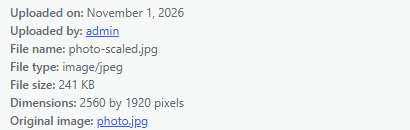
photo-scaled.jpg at 2560 x 1920.To see the whole picture before you re-upload anything, drop the image into the WordPress image sizes tool — it shows every derivative WordPress will generate from that exact file, including whether a -scaled copy gets created and at what dimensions, so you know upfront whether your source is big enough for where you’re placing it.
On the server you can list every capped file:
find wp-content/uploads -name '*-scaled.*'How to fix it, in order
1. If your images legitimately need to be larger than 2560px (large heroes, retina, print-quality galleries), raise the threshold:
// functions.php or a small mu-plugin
add_filter( 'big_image_size_threshold', function () {
    return 3840; // longest edge, in pixels
} );
Or turn the cap off entirely:
add_filter( 'big_image_size_threshold', '__return_false' );2. Fix the images already in your library — the right way depends on which filter you used. Changing the threshold only affects new uploads on its own, but a real, measured test on WordPress 7.1.4 (WP-CLI’s wp media regenerate and the Regenerate Thumbnails plugin, both with their defaults) showed the two filters behave completely differently once you regenerate:
| What you did to the threshold | Then you regenerated | Result WordPress served | Widest srcset candidate |
|---|---|---|---|
Raised it to a number (return 3840;) | WP-CLI or Regenerate Thumbnails | A new -scaled.jpg at 3840 × 3225 — fixed | 3840w |
Turned it off (__return_false) | WP-CLI or Regenerate Thumbnails | The same old 2560 × 2150 file, now mislabeled 5696 × 4784 — not fixed | none |
Turned it off (__return_false) | Deleted the attachment and re-uploaded | The real 5696 × 4784 original | 5696w |
So: if you raised the threshold to a specific number, regenerating thumbnails is genuinely enough — no re-upload needed. If you turned the cap off completely, regenerating does nothing because the attachment metadata keeps pointing at the old -scaled file; only deleting and re-uploading serves the real original. Full method, tool checksums and logs: seo-research/first-hand-test/regenerate-after-threshold/RESULTS.md in this site’s own repo.
Before you delete anything to re-upload it, note that deleting an attachment removes it from every post, featured image and gallery that currently uses it — re-add it in each place after the re-upload, or duplicate the post first if you need to keep the old version around.
3. If your source is already ≤2560px and still blurry, the threshold isn’t your problem — the display box is bigger than the image. Upload a larger source, or shrink the container. For retina sharpness, your source needs to be roughly twice the CSS pixel width of the box it fills (see the table above: a 1280px-wide 2x container needs the full 2560px the default cap allows; anything wider needs a higher threshold).
What not to do
Don’t crank JPEG quality to 100. WordPress compresses to a default quality of 82 via wp_editor_set_quality. Some guides suggest overriding it:
add_filter( 'wp_editor_set_quality', function () { return 90; } );That’s fine for reducing compression artifacts, but a stretched, upscaled image is a resolution problem, not a compression one. Going from 82 to 100 bloats your files and does almost nothing for the softness you’re seeing. If compression artifacts — not resolution — are the actual issue, see stop WordPress compressing your images at 82%.
Don’t disable -scaled as a reflex. Turning off the cap (there’s a tool for that) is the right call if you serve images above 2560px — but if your real issue is a too-small intermediate getting stretched, disabling it changes nothing and you lose the bandwidth savings for no reason. Diagnose first.
Don’t blame the cache before checking which threshold filter you used. Clearing a CDN or page cache won’t touch a file that was genuinely small on disk. Regenerating thumbnails can restore resolution — but only if you raised big_image_size_threshold to a number first; it does nothing if you used __return_false (see the table above).
Don’t reach for the theme’s CSS or object-fit. No amount of styling adds pixels. If the served file ends in -scaled or a dimension suffix, the file is the problem, not the layout.
Still stuck?
Running a store? WooCommerce has its own three image sizes on top of this — see WooCommerce product image size if the soft images are specifically catalog or product photos.
If you’ve confirmed the served file is your full-resolution upload — no -scaled, no dimension suffix — and it’s still soft, check whether a plugin (an optimizer, a CDN image-resizer, or a lazy-load library) is rewriting your src to a compressed proxy. Run the image through the image sizes tool to confirm what WordPress should be generating, then compare that against what the browser actually loads. When those two disagree, something between WordPress and the browser is the culprit.
The symptom is specifically the featured image, not inline content? Featured image size covers the crop and dimension rules WordPress applies there, which are different from the full/-scaled path this guide covers. And if raising the threshold or keeping full-size originals is filling up your server, see uploads folder too big for what to trim instead of undoing the fix you just made.
Sources
- WordPress Developer Resources: big_image_size_threshold, wp_create_image_subsizes(), wp_get_original_image_path(), wp_editor_set_quality
- WordPress source code: image.php
- This site’s own first-hand test of the regenerate-after-threshold behavior (WordPress 7.1.4, WP-CLI 2.12.0, Regenerate Thumbnails 3.1.6):
seo-research/first-hand-test/regenerate-after-threshold/RESULTS.md
William Lopez is the founder of Odie Themes. He builds the free WordPress tools and themes on this site and has been on WordPress.org since December 2019.
FAQ
Questions
Why are my WordPress images blurry after upload?
Most likely WordPress downscaled the file during upload. Since WordPress 5.3, any image wider or taller than 2560px is silently replaced by a -scaled copy capped at 2560px on its longest edge, and that smaller file is what your theme stretches to fill a hero, full-width block, or retina display.
What does -scaled mean in a WordPress image filename?
It means WordPress capped that upload at 2560px on its longest edge and is serving the reduced copy instead of your original. The true original stays on disk, and a real test confirmed WordPress's image editor opens that original — not the -scaled file — every time it builds thumbnail, medium, medium_large, large and the other intermediate sizes. Only the 'full' size and srcset candidates stay capped at 2560px until you act.
How do I stop WordPress from resizing images over 2560px?
Add a filter on big_image_size_threshold in functions.php or a small mu-plugin that returns a larger number such as 3840, or return __return_false to turn the cap off entirely. If you raise it to a number, a real test showed regenerating existing images is enough — no re-upload needed. If you turn it off completely, regenerating does not help (the attachment keeps pointing at the old -scaled file with no srcset); only a fresh re-upload serves the full original in that case.
Does regenerating thumbnails fix blurry WordPress images?
It depends on what you changed. In a real test on WordPress 7.1.4, raising big_image_size_threshold to a specific number (3840) and then regenerating with WP-CLI or the Regenerate Thumbnails plugin produced a new 3840px -scaled file with srcset up to 3840w — the fix worked. Turning the cap off entirely with __return_false and then regenerating left the same old 2560px file in place with no srcset at all, mislabeled as the full size; only deleting and re-uploading served the real original. So: raised-to-a-number plus regenerate works; cap-turned-off needs a fresh upload.
Will increasing JPEG quality make my WordPress images sharper?
No, not when the image is being stretched. WordPress compresses to a default quality of 82 via wp_editor_set_quality, and raising that only reduces compression artifacts. An upscaled image is a resolution problem, so going from 82 to 100 bloats your files and does almost nothing for the softness.