WordPress Featured Image Size: 1200×630 + How to Find Yours
WordPress featured image size: 1200×630 px suits link previews, but your theme may crop it. Find the size your theme displays and upload at 2× its width.

Short answer: if you do not know your theme’s size yet, use 1200 x 630 pixels (about 1.91:1). It is the link preview size Facebook recommends, and SEO plugins usually use the featured image as the share image.
On the post itself, the size that counts is the one your theme displays. WordPress stores every upload in several sizes, and the theme picks which one appears. Classic themes set that with set_post_thumbnail_size() or add_image_size(); block themes set it in the Featured Image block. If the theme crops to 16:9 or square, a 1200 x 630 image can lose part of its left and right edges. Find your theme’s size (four ways below), then upload an image at least that large, or about twice as wide for sharp results on high-density screens.
To see every size WordPress will create from a particular image, drop it into the WordPress image sizes tool.
Which size to use, by where the image appears
| Where the image appears | Size to upload | Notes |
|---|---|---|
| Your posts, theme size not known yet | 1200 x 630, or 2400 x 1260 for sharper results | Also works for link previews while you find your theme’s size |
| Your posts, theme size known | About twice your theme’s featured image width, at the same aspect ratio | WordPress makes smaller copies of an upload, never larger ones |
| Facebook link previews | At least 1200 x 630 (about 1.91:1); 1200 x 628 is almost the same shape | From Facebook’s sharing guidance |
| Google Discover | At least 1200 px wide, 16:9 (for example 1200 x 675) | From Google’s Discover guidelines |
WordPress image sizes at a glance
Every image you upload gets resized copies for each registered size. These are the sizes WordPress core registers, with the defaults from the Theme Handbook and the core function reference:
| Size name | Default dimensions | Can you change it in Settings > Media? | Notes |
|---|---|---|---|
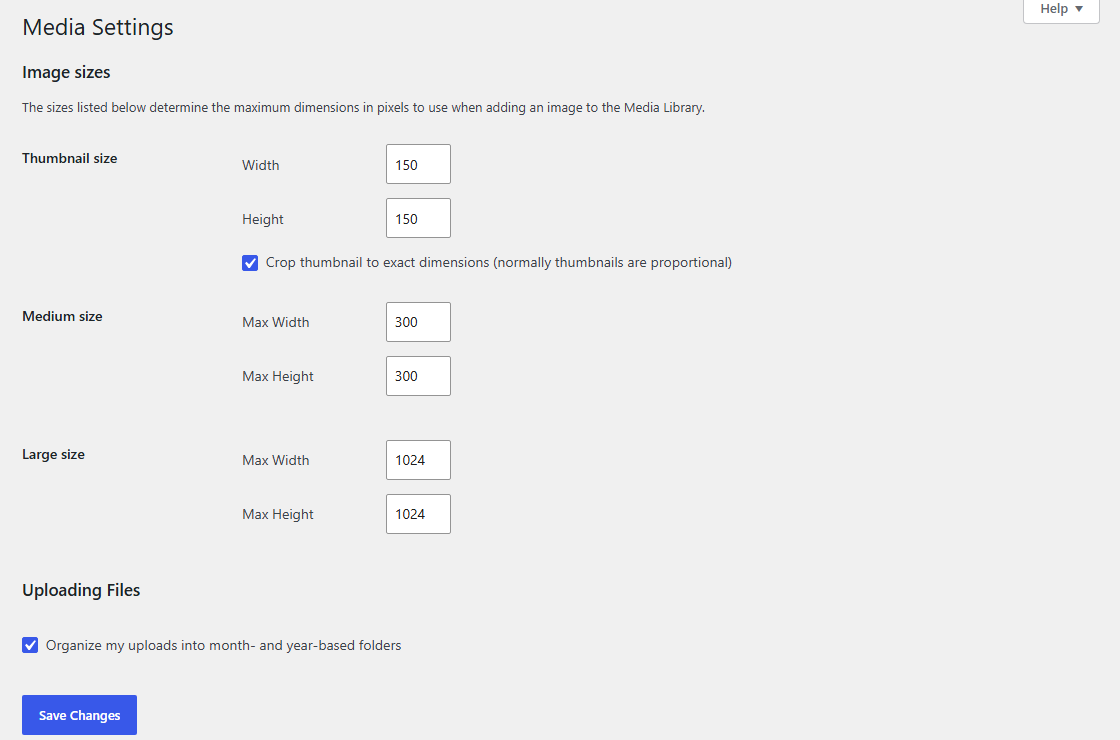
thumbnail | 150 x 150, cropped | Yes | Has a “crop to exact dimensions” checkbox |
medium | 300 x 300 max | Yes | Scaled proportionally |
medium_large | 768 wide, no height limit | No | Used mainly in srcset |
large | 1024 x 1024 max | Yes | Scaled proportionally |
1536x1536 | 1536 x 1536 max | No | Added in WordPress 5.3 for high-density screens |
2048x2048 | 2048 x 2048 max | No | Added in WordPress 5.3 for high-density screens |
post-thumbnail | Set by the theme | No | Only exists if the theme calls set_post_thumbnail_size() |
full | Your original upload | No | Very large uploads are scaled down first (see below) |
“Max” means WordPress fits the image inside that box and keeps its proportions. A 2000 x 1000 photo becomes 1024 x 512 for large, not 1024 x 1024.
Themes and plugins often add more sizes with add_image_size(). WooCommerce, for example, adds its own product sizes, which our WooCommerce product image size guide covers.
One more rule affects big uploads. Since WordPress 5.3, if an image is wider or taller than 2560 pixels, WordPress scales it down and uses the scaled copy as the largest available size. That threshold comes from the big_image_size_threshold filter, whose default is 2560. If you are seeing -scaled in file names and want to know whether to turn this off, read how to disable scaled images in WordPress.
Where the featured image size actually comes from
A featured image is any image you set in the Featured image panel of the post editor. What visitors see depends on how the theme prints it.
Classic themes
A classic theme turns on featured images and registers the size in its functions.php:
add_theme_support( 'post-thumbnails' );
set_post_thumbnail_size( 1200, 675, true );
set_post_thumbnail_size() registers a size named post-thumbnail. The third argument controls cropping. With false (the default), WordPress scales the image to fit inside 1200 x 675. With true, it cuts the image to exactly 1200 x 675 from the center, so anything outside a 16:9 box is lost. You can also pass an array such as array( 'center', 'top' ) to choose which part is kept.
Many themes register extra named sizes for different templates:
add_image_size( 'hero-wide', 1600, 900, true );
add_image_size( 'card', 600, 400, true );
The template then chooses one by name:
if ( has_post_thumbnail() ) {
	the_post_thumbnail( 'hero-wide' );
}
Called with no name, the_post_thumbnail() uses post-thumbnail. So the real featured image size on a classic theme is the size named in the template, and a blog archive can use a different one from the single post view.
Block themes
Block themes, including the free themes on this site, print the featured image with the Featured Image block. The core blocks reference lists its settings, including sizeSlug (which registered size to load), aspectRatio, width, height and scale.
That changes where you look. Open Appearance > Editor, edit the Single Posts template, and select the Featured Image block. The sidebar shows which image size it loads and whether an aspect ratio is set. The aspect ratio is applied in the browser with CSS, so the file stays the same and the visible frame changes. If the block asks for a 16:9 frame and your image is square, part of it is hidden. Archive and home templates can use different settings from the single post template, so check each one.
To check that last point with real settings instead of a general claim, we opened the actual templates/*.html files inside the four free block themes this site distributes and read the aspectRatio attribute WordPress stores on each theme’s Featured Image block:
| Theme | Archive / home template | Single / page template |
|---|---|---|
| Civic Brief | Cropped to 16:9 | Not cropped (native proportions) |
| Portfolio Plate | Cropped to 4:3 | Not cropped (native proportions) |
| Ledger Docs | No featured-image block on archives | Not cropped (native proportions) |
| Quietype | No separate archive block | Cropped to 16:9 on both single and page |
Two of the four themes (Civic Brief, Portfolio Plate) crop on the archive/home template but leave the single post uncropped, confirming that “check each template” is not just a theoretical warning. This is a check of four themes, not a universal rule, and the exact size slug each block requests was out of scope for this pass since none of the templates set a sizeSlug attribute.
Does a hard crop actually lose the edges? The real math, tested
The claim that a 16:9 or square crop “cuts off the sides” depends on the exact pixels involved, not just the ratio. WordPress decides this with image_resize_dimensions(), the core function behind every cropped size. It clamps the crop to min(requested, original) in each dimension, then crops the larger of the two ratios — so it can only crop pixels that exist, and it never enlarges the source to hit a crop target. We ported that function’s crop branch line-for-line into Node.js and ran four real cases through it:
| Upload | Theme crops to | What WordPress actually does |
|---|---|---|
| 1200 x 630 (the “short answer” size above) | 1200 x 675 (16:9) | No edges lost. The crop would need more height than the upload has, so WordPress’s own math caps the result at 1200 x 630 and skips making that derivative — the original is used as-is. |
| 2400 x 1260 (this guide’s “upload 2x” advice) | 1200 x 675 (16:9) | 80px lost off each side. WordPress crops a centered 2240 x 1260 slice out of the 2400px width, then scales it down to 1200 x 675. |
| 1200 x 630 | 630 x 630 (square) | 285px lost off each side, cropped to a centered 630 x 630 square before any scaling. |
| 1600 x 900 (already 16:9) | 1200 x 675 (16:9) | No edges lost. Matching aspect ratio needs only downscaling. |
The practical takeaway: a stock 1200 x 630 upload is often too small to actually get hard-cropped by a 16:9 theme — WordPress just quietly skips that derivative instead. Edge loss shows up once you follow the “upload at 2x” advice above, which is also when it’s worth keeping your subject centered. Full script and output: seo-research/first-hand-test/wordpress-featured-image-size-2026-11-06.txt.
How to find your theme’s featured image size
Try these in order. The first one that gives you an answer is enough.
-
Check the theme documentation. Good themes state the recommended featured image size. If it is listed, use it.
-
List the registered sizes with WP-CLI. If you have command-line access,
wp media image-sizeprints every registered size with its width, height, crop setting and ratio:wp media image-size -
Search the theme files. In a classic theme, look in
functions.php(and any files it includes) forset_post_thumbnail_sizeandadd_image_size, then look insingle.phpor the template parts for the name passed tothe_post_thumbnail(). In a block theme, check the Featured Image block in the Site Editor as described above. -
Inspect a live post. Right-click the featured image, choose Inspect, and read the file name in
src. WordPress adds the dimensions to resized copies, somy-photo-1200x675.jpgtells you the theme loaded a 1200 x 675 copy. Also look atsrcset, because the browser may pick a smaller copy on narrow screens. No dimensions in the name means the full-size file was used.
Once you know the target, run a sample image through the image sizes tool to check what each derivative will look like before you upload a batch.
Choosing the upload size
With the theme’s size known, four choices decide whether the result looks right.
- Width. Upload at least the width the theme displays. For sharp results on high-density phone and laptop screens, aim for about twice that width. For a 1200px wide slot, that means 2400px. WordPress makes smaller copies from your upload and never makes larger ones, so an undersized original is a common cause of a blurry image after upload.
- Aspect ratio. Match the ratio of the theme’s crop. If it crops to 16:9, give it 16:9 and keep the subject near the center so a hard crop does not cut off heads or text.
- File size. A 2400px photo saved as JPEG at sensible quality is typically well under a megabyte, though the exact number depends on the photo’s detail and your quality setting. Uploading a 6000px camera file only adds work: WordPress scales anything over 2560px down anyway, and the extra pixels never reach visitors. Every size WordPress generates from that upload is stored too, so a library of oversized originals is a common reason a WordPress uploads folder grows too large.
- File format. WordPress has accepted WebP uploads since version 5.8 and AVIF since 6.5, as long as your server’s image library supports them. Both usually give a smaller file than JPEG at similar quality. If your featured images already look soft after upload and the size and ratio are both right, the cause is more often WordPress’s default JPEG compression than the registered size.
The social sharing image is a separate job
When someone shares your post on Facebook, LinkedIn or other networks, the preview comes from the og:image tag, which SEO plugins usually fill from the featured image. Facebook’s sharing documentation recommends images of at least 1200 x 630 pixels, kept as close to a 1.91:1 ratio as possible.
You will also see 1200 x 628 recommended. That one is almost exactly 1.91:1, while 1200 x 630 works out to about 1.90:1. The two are only 2 pixels apart in height, so either works.
If your theme’s display size is also close to 1.91:1, one 1200 x 630 (or 2400 x 1260) upload works for both. If the theme crops to 16:9 or square, keep important content away from the left and right edges, or set a separate social image in your SEO plugin.
Google Discover has its own image advice. Google’s Discover guidelines recommend images at least 1200 px wide, more than 300,000 pixels in total, in a 16:9 ratio such as 1200 x 675. Large images also need the max-image-preview:large robots setting, which WordPress has added by default since version 5.7 unless the site is set to discourage search engines.
How to change the featured image size
Where you make the change depends on the size and on your theme.
Core sizes (thumbnail, medium, large). Go to Settings > Media and change the width and height. The Settings Media screen documentation describes the fields, including the crop checkbox for thumbnails.
Theme sizes in a classic theme. Do not edit the parent theme, because a theme update will overwrite your change. Add the new values in a child theme’s functions.php. Registering a size again with the same name replaces it, and the child theme’s setup should run after the parent’s:
add_action( 'after_setup_theme', function () {
	set_post_thumbnail_size( 1600, 900, true );
	add_image_size( 'hero-wide', 1600, 900, true );
}, 11 );
The priority of 11 makes this run after a parent theme hooked at the default priority of 10. Check the parent’s code and adjust if it uses a later priority.
Block themes. Change the Featured Image block’s image size and aspect ratio in the Site Editor template. No code is needed, and the change applies to every post using that template.
One image, no code. To choose what a crop keeps on a single image, open it from Media > Library and click Edit Image. Crop it to your theme’s ratio (the crop tool takes an aspect ratio such as 16:9) or scale it, then save. WordPress applies the change to all of that image’s sizes and keeps the original file, so Restore original image can undo it later.
Regenerate existing thumbnails
A changed size only applies to new uploads. Images already in your media library keep their old copies until you rebuild them. The wp media regenerate command does this:
wp media regenerate --yesUseful options from the WP-CLI documentation:
--image_size=hero-widerebuilds only that size. Repeat the flag for several sizes.--only-missingcreates sizes that do not exist yet and leaves existing files alone, which is faster after adding a new size.--skip-deletekeeps the old thumbnail files. Use it if other sites, newsletters or feeds link directly to those files.
Without command-line access, the Regenerate Thumbnails plugin from the WordPress.org plugin directory does the same from the dashboard. Take a backup first on a large library, because regeneration rewrites a lot of files.
Common mistakes
- Stopping at 1200 x 630. It is a good starting point and suits link previews, but if your theme crops to 16:9 or square, part of the image is cut. Check your theme’s size before you upload a batch.
- Turning off the generated sizes to “keep the original.” If the theme has no smaller copies, it can end up loading the full file on every screen, which slows the page on phones. The resized copies exist to prevent that.
- Editing image size code and skipping regeneration. The code works, but only for new uploads. This is why many people decide a size change “did nothing.”
- Changing the size in the parent theme. The next theme update removes it. Use a child theme or the Site Editor.
If the image still looks wrong after you have matched the size, the ratio, and regenerated, check the file name the browser loaded against the sizes the image sizes tool says WordPress should create. When they differ, an optimization plugin or a CDN image resizer sitting between WordPress and the visitor is a likely cause — it can serve its own resized version instead of WordPress’s.
Sources
- WordPress Developer Resources: Featured images and post thumbnails (Theme Handbook), set_post_thumbnail_size(), big_image_size_threshold
- WP-CLI: wp media image-size, wp media regenerate
- WordPress documentation: Settings Media screen
- WordPress core dev notes: WebP support in 5.8, AVIF support in 6.5, max-image-preview in 5.7
- WordPress source code: image-edit.php, media.php (
image_resize_dimensions()) - Meta for Developers: Images in link shares
- Google Search Central: Google Discover
William Lopez is the founder of Odie Themes. He builds the free WordPress tools and themes on this site and has been on WordPress.org since December 2019.
FAQ
Questions
What is the best WordPress featured image size?
If you do not know your theme's size yet, start with 1200 x 630 pixels. It is the link preview size Facebook recommends, and SEO plugins usually use the featured image as the share image. After that, the best size is the one your theme displays: upload an image that covers that registered size at its aspect ratio, ideally at twice the width for high-density screens.
Why are my WordPress featured images blurry?
The source file is usually smaller than the size the theme displays. WordPress only creates smaller copies of an upload and never enlarges it, so a 600px wide file stretched into a 1200px wide slot looks soft. Upload a larger original, then regenerate thumbnails so the theme's sizes are rebuilt from it.
Is 1200x630 the correct WordPress featured image size?
It is the size Facebook recommends for link preview images: at least 1200 x 630 pixels at about a 1.91:1 ratio, and a good default when you do not know your theme's size. Your theme may still display a different registered size on the post itself. Whether a narrower crop (16:9 or square) actually loses edges depends on the math in WordPress's own image_resize_dimensions() function: a bare 1200 x 630 upload cropped to 1200 x 675 (16:9) is not large enough for WordPress to crop at all, so it skips that derivative; the same crop from a 2400 x 1260 upload (this guide's own 2x recommendation) does lose 80px off each side. See the worked numbers below.
Why is WordPress cropping my featured image?
The theme registered its featured image size with cropping turned on. When the crop argument of set_post_thumbnail_size or add_image_size is true, WordPress cuts the image to the exact width and height from the center. When it is false, which is the default, WordPress scales the image proportionally instead.
Do I need to regenerate thumbnails after changing image sizes in WordPress?
Yes. A new or changed size only applies to images uploaded after the change. Existing images keep their old files until you rebuild them, with wp media regenerate --yes in WP-CLI or with a regeneration plugin from the dashboard. Use --skip-delete if other sites link straight to the old thumbnail files.